 Connecting Turris Omnia to Wien Energie Optical Network
I have been a happy user of Turris Omnia since its introduction. Some time ago SuperSchnell Internet from Wien Energie became available at my flat in Vienna. Initially, I connected the Turris Omnia to the downstream port of Genexis Pure-F500 router (provided by Wien Energie). However, a few weeks ago, I directly connected Turris Omnia to the Wien Energie optical network, and I've been pleased with the results ever since.
Motivation
The primary reasons for undertaking this project were:
- Full support of IPv6 in my home network, as the WienEnergie router does not support prefix delegation.
- Reduce electricity consumption, since the WienEnergie router consumes 54 kWh per year.
- Learn more about optical networks and finally have a project worth writing about.
Equipment
I purchased the necessary items from FS for 27.48 EUR (including shipping).
- Essential:
- Generic Compatible SFP 1000BASE-BX-U BiDi 1310nm-TX/1490nm-RX 20km DOM Simplex LC/UPC SMF Optical Transceiver Module: Although the Genexis Pure-F500 router supports two wavelengths for RX, it seems Wien Energie only uses 1490nm for RX in its network.
- LWL-Patchkabel, 2m (7ft) LC UPC auf SC APC Simplex OS2 Singlemode PVC (OFNR) 2.0mm : Selecting the correct patch cable was the most challenging part of this project.
- Optional:
- SC/APC zu SC/APC Simplex Singlemode LWL-Keystone-Buchse: This 1.5 EUR connector made things easier, as my Wien Energie wall socket is behind the couch and hard to access. If your wall socket type differs, this connector accepts the same cable as the Genexis Pure-F500 router.
- TP-Link Gigabit SFP Media Converter: I borrowed this from work to test everything before reconfiguring the Turris Omnia.
Installation
1. Identifying the WAN MAC Address of Wien Energie Router
Log in to the Wien Energie router’s web interface:
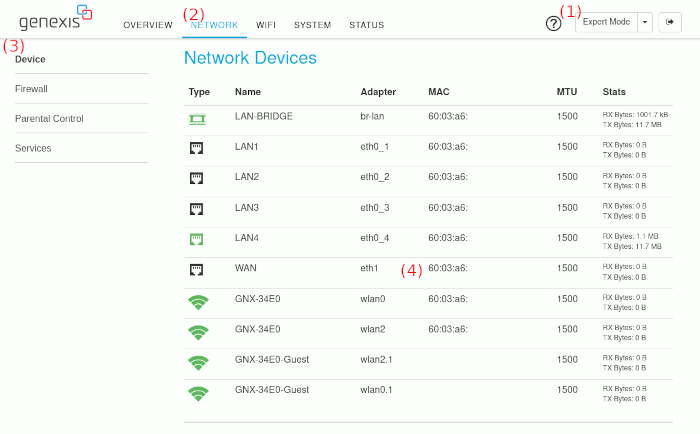
- (1) switch to expert mode
- (2) select NETWORK
- (3) select Device
- (4) write down MAC address of eth1 interface
In my case, the MAC address of the eth1 interface was the same as the one printed on the router, incremented by one.
2. Connecting a Laptop Directly to Wien Energie Network
- Turn off the Wien Energie router.
- Disconnect the Wien Energie optical cable from the router and connect it to the SC/APC to SC/APC connector.
- Attach the connector to the SFP module in the TP-Link converter using the patch cable you purchased.
- Configure your laptop to use the MAC address of the Wien Energie router.
- Connect your laptop to the TP-Link converter and let DHCP handle the configuration.
Your laptop should now be directly connected to the Wien Energie Network.
3. Connecting the Turris Omnia Using the TP-Link Gigabit SFP Media Converter
- Login to Turris Omnia web interface - reForis.
- Go to "Network Settings" - "WAN".
- In "MAC Settings" section enable "Custom MAC address" switch.
- In "MAC Settings" section enter "Custom MAC address" of Wien Energie router.
- Connect WAN port of Turris Omnia to TP-Link Gigabit SFP Media Converter. Everything should work as expected, including IPv6 functionality on your home network.
4. Connecting Turris Omnia Directly to Wien Energie Network
The Turris Omnia has two device trees available. The default one sets eth2 interface to Ethernet. To switch it to the SFP module, execute the following commands via SSH as root:
root@turris:~# cd /boot/
root@turris:/boot# ls -la
drwxr-xr-x    1 root     root           158 Aug 14 12:38 .
drwxrwxr-x    1 root     root           184 Aug  7 18:12 ..
-rw-r--r--    1 root     root         21434 Jul 25  2022 armada-385-turris-omnia-phy.dtb
-rw-r--r--    1 root     root         21410 Jul 25  2022 armada-385-turris-omnia-sfp.dtb
-rw-r--r--    1 root     root          1199 Jul 25  2022 boot.scr
lrwxrwxrwx    1 root     root            31 Jul 25  2022 dtb -> armada-385-turris-omnia-phy.dtb
-rwxr-xr-x    1 root     root       4281872 Aug  5 04:25 zImage
root@turris:/boot# ln -sf armada-385-turris-omnia-sfp.dtb dtb
root@turris:/boot# ls -la
drwxr-xr-x    1 root     root           158 Aug 14 12:38 .
drwxrwxr-x    1 root     root           184 Aug  7 18:12 ..
-rw-r--r--    1 root     root         21434 Jul 25  2022 armada-385-turris-omnia-phy.dtb
-rw-r--r--    1 root     root         21410 Jul 25  2022 armada-385-turris-omnia-sfp.dtb
-rw-r--r--    1 root     root          1199 Jul 25  2022 boot.scr
lrwxrwxrwx    1 root     root            31 Aug 14 12:38 dtb -> armada-385-turris-omnia-sfp.dtb
-rwxr-xr-x    1 root     root       4281872 Aug  5 04:25 zImage
Afterward, reboot the router with the SFP module inserted. You should see messages related to the SFP in the dmesg log. The eth2 interface should obtain both IPv4 and IPv6 addresses, and everything should work as expected.
root@turris:/boot# dmesg | grep sfp
[   11.907316] sfp sfp: Host maximum power 3.0W
[   12.238090] sfp sfp: module FS               SFP-GE-BX        rev      sn G24********      dc ******
Acknowledgements / Sources
- https://wiki.turris.cz/doc/en/public/sfp - confirmation that FS modules works fine with Turris Omnia
- https://www.heise.de/ratgeber/WLAN-Router-Turris-Omnia-auf-SFP-umstellen-4690526.html - instructions how to reconfigure Turris Omnia to use SFP
- https://genexis.eu/content/uploads/2020/10/Pure-Fiber-Series-Datasheet-V2.1-EN.pdf - Datasheet of Genexis Pure-F500 router
- https://www.lteforum.at/mobilfunk/superschnell-internet-von-wien-energie.17665/seite-3.html - Austrian forum mentioning somebody already doing this
- My employer StreamUnlimited for borrowing me TP-Link Gigabit SFP Media Converter.
- Marek Tihon from Alberon for confirmation of selecting the right components.
- ChatGPT for grammar corrections and style improvements.

Kamenický encoding (čeština) in DOSBox
My father needs to use an old Czech program for calculating the amount of farm slurry that should be put on fields. This program used to run under MS-DOS and relies on the usage of Kamenický encoding. As his company switched to Windows 7, he had to start using DOSBox to run this program. Unfortunately, DOSBox does not support Kamenický encoding out of the box.
The solution is to get ega9.cpx from FreeDOS and to use it with DOSBox. I have extracted ega9.cpx out of the dosemu debian package, but you can also find it on github. Just to be sure, double-check its md5.
$ md5sum ega9.cpx
e09434873a744eb34f6a398bb219c157  ega9.cpx
Copy ega9.cpx next to the DOS application that needs to be started with Kamenický encoding. After that, create a bat file with the following commands in the same place.
keyb cz 867 ega9.cpx
YOUR APPLICATION.EXE
At the end just tell DOSBox to start the bat file instead of your application.
This will load both the correct keyboard map and the correct fonts. This is a cleaner solution than using KEYB_CS.COM and VEGA_CS.COM, which only worked partially for me under DOSBox.
Here are couple of keywords in the Czech language, so people will also find this post when Googling in Czech: dosbox, čeština, kódování, Bratři Kameničtí
Heroku: Running multiple python processes in a single dyno using Honcho
Recently I had exactly the same problem as Jonatan Heyman in his post Heroku: Running multiple python processes in a single dyno using foreman. I also needed to run a web and Celery process in one Heroku dyno during prototyping.
I really liked Jonatan's approach, but as the $PORT bug was fixed recently, I decided to use Honcho in order to avoid mixing ruby and python in one project.
The process is quite straight forward:
- Install Honcho using "pip install honcho".
- Regenerate your requirements.txt to include Honcho.
- Rename your current Procfile to ProcfileHoncho.
- Create a new Procfile with the following content
web: honcho -f ProcfileHoncho start
That should theoretically be it. Unfortunately, there is a small bug in Honcho. Before this bug gets fixed you will need to run the following workaround for Honcho to work properly:
heroku config:set USER=heroku
Zipx file with JPEG pictures on Linux
Recently, I received a zipx file with JPEG pictures, which were compressed using method 96. Method 96 is applied by WinZip 12.0 or newer on JPEG pictures when the best compression method is selected. The file had a compression ratio of 80.4%. The method 96 is well described here: http://www.winzip.com/wz_jpg_comp.pdf
I tried the following programs to unzip the file:
| Ubuntu 12.04 package | Command | Result |
|---|---|---|
| unzip | unzip pictures.zipx | Failed: "unsupported compression method 96" |
| p7zip-full | 7z x pictures.zipx | Failed: "Unsupported Method" |
| unar | unar pictures.zipx | Succeeded |
Unar seemed to be the only unziping program for Linux capable of extracing zipx files made with compression method 96. It was not easy to find, because unar's main focus is the MacOS. More information is available at its homepage: http://unarchiver.c3.cx/
AM1808 privileged/supervisor mode in TI CCSv5.1
1) extract /opt/ti/ccsv5/tools/compiler/tms470/lib/rtssrc.zip
2) copy boot.asm into your Code Composer Studio project
3) apply following patch on boot.asm
--- a/boot.asm	2011-10-20 05:36:52.000000000 +0200
+++ b/boot.asm	2011-11-17 23:22:02.339068102 +0100
@@ -262,11 +262,11 @@
 	.endif

         ;*------------------------------------------------------
-	;* SET TO USER MODE
+	;* SET TO PRIV MODE
         ;*------------------------------------------------------
         MRS     r0, cpsr
         BIC     r0, r0, #0x1F  ; CLEAR MODES
-        ORR     r0, r0, #0x10  ; SET USER MODE
+        ORR     r0, r0, #0x1F  ; SET PRIV MODE
         MSR     cpsr_cf, r0

         ;*------------------------------------------------------
4) When debugging verify that Registers - Core Registers - CPSR - M is set to 11111
Linux - easiest way to quickly transfer files on LAN
Make sure that you have netcat and tar available on both of your machines, Netcat and tar should be part of default Ubuntu installation.
Execute following commands on receiving computer:
cd /directory/to/receive/files
nc -l 8888 | tar -xv
After that execute following on sending computer:
cd /directory/with/files/to/send
tar -cv * | nc 10.10.10.10 8888
You can add -z to tar parameters to gzip files, which may be useful for transfers over Wi-Fi.
KMyMoney: Import from ČSOB using AqBanking
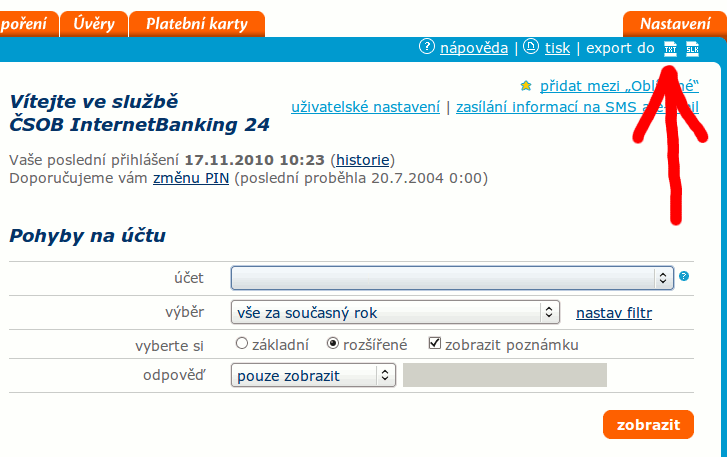
1) Save your transaction history from your Internet banking as showed on the following picture:
2) Run following script on saved file:
#!/usr/bin/perl

use utf8;

if ($#ARGV != 1 ) {
    print "usage: csob.pl inputfile outputfile\n";
    exit;
}

open INPUT, "<:encoding(cp1250)", $ARGV[0];
open OUTPUT, ">:encoding(utf8)", $ARGV[1];
print OUTPUT "\n";

while(<INPUT>) {
    if (/:/) {
        ($key, $value) = split(/:\s*/, $_, 2);
        $value =~ s/\s*\n$//;
        if ($key eq "datum zaúčtování") {
            ($day, $month, $year) = split (/\./, $value);
            $value = "$year/$month/$day";
        }
        $values{$key} = $value;
    } else {
        if ($values{"částka"}) {
            print OUTPUT ";";                                       #1="transactionId"
            print OUTPUT "0300;";                                   #2="localBankCode"
            print OUTPUT ";";                                       #3="localAccountNumber"
            print OUTPUT ";";                                       #4="remoteBankCode"
            print OUTPUT ";";                                       #5="remoteAccountNumber"
            print OUTPUT '"'.$values{"datum zaúčtování"}.'";';      #6="date"
            print OUTPUT '"'.$values{"datum zaúčtování"}.'";';      #7="valutadate"
            print OUTPUT '"'.$values{"částka"}.'";';                #8="value/value"
            print OUTPUT '"'.$values{"měna"}.'";';                  #9="value/currency"
            print OUTPUT ";";                                       #10="localName"
            print OUTPUT '"'.$values{"název protiúčtu"}.'";';       #11="remoteName[0]"
            print OUTPUT ";";                                       #12="remoteName[1]"
            print OUTPUT '"'.$values{"označení operace"}.'";';      #13="purpose[0]"
            print OUTPUT '"'.$values{"poznámka"}.'";';              #14="purpose[1]"
            print OUTPUT '"'.$values{"konstantní symbol"}.'";';     #15="purpose[2]"
            print OUTPUT '"'.$values{"variabilní symbol"}.'";';     #16="purpose[3]"
            print OUTPUT '"'.$values{"specifický symbol"}.'";';     #17="purpose[4]"
            print OUTPUT ";";                                       #18="purpose[5]"
            print OUTPUT ";";                                       #19="purpose[6]"
            print OUTPUT ";";                                       #20="purpose[7]"
            print OUTPUT ";";                                       #21="purpose[8]"
            print OUTPUT ";";                                       #22="purpose[9]"
            print OUTPUT ";";                                       #23="purpose[10]"
            print OUTPUT ";";                                       #24="purpose[11]"
            print OUTPUT ";";                                       #25="category[0]"
            print OUTPUT ";";                                       #26="category[1]"
            print OUTPUT ";";                                       #27="category[2]"
            print OUTPUT ";";                                       #28="category[3]"
            print OUTPUT ";";                                       #29="category[4]"
            print OUTPUT ";";                                       #30="category[5]"
            print OUTPUT ";";                                       #31="category[6]"
            print OUTPUT "";                                        #32="category[7]"
            print OUTPUT "\n";
        }
        %values = ();
    }
}

close INPUT;
close OUTPUT;
3) Import newly created file into KMyMoney using default CSV importer.
FreeRTOS 6.1.0 minimal example
Suppose you have following main.c and it works properly
#include <stdio.h>                          // prototype declarations for I/O functions

#include "uart.h"

int main (void)
{
    vUartInit();

    printf ("Hello World\n");

    for (;;);
}
and you want to make minimalistic FreeRTOS example on your processor.
You will need to do following.
- Link following sources to your project
=> FreeRTOS/Source/list.c
=> FreeRTOS/Source/queue.c
=> FreeRTOS/Source/tasks.c
=> FreeRTOS/Source/portable/MemMang/heap_YOUR_HEAP.c
=> FreeRTOS/Source/portable/YOUR_PORT/port.c
=> FreeRTOS/Source/portable/YOUR_PORT/portASM.s - Copy FreeRTOSConfig.h from closest demo example to your include path
- Add following directories to you include path
=> FreeRTOS\Source\include - You may need to change Startup.S to the one from closest demo example, if threads are not starting
- Modify your main.c to contain:
/* Standard includes */
#include <stdio.h>                          // prototype declarations for I/O functions

/* Driver includes */
#include "uart.h"

/* Scheduler includes */
#include "FreeRTOS.h"
#include "task.h"

void prvTaskA (void* pvParameters)
{
    (void) pvParameters;                    // Just to stop compiler warnings.

    for (;;) {
        vTaskDelay(500);
        printf("Task A\n");
        vTaskDelay(500);
    }
}

void prvTaskB (void* pvParameters)
{
    (void) pvParameters;                    // Just to stop compiler warnings.

    for (;;) {
        printf("Task B\n");
        vTaskDelay(1000);
    }
}

int main (void)
{
    vUartInit();

    xTaskCreate( prvTaskA, ( signed char * ) "TaskA", configMINIMAL_STACK_SIZE, NULL,
        tskIDLE_PRIORITY, ( xTaskHandle * ) NULL );
    xTaskCreate( prvTaskB, ( signed char * ) "TaskB", configMINIMAL_STACK_SIZE, NULL,
        tskIDLE_PRIORITY, ( xTaskHandle * ) NULL );

    vTaskStartScheduler();

   //should never get here
   printf("ERORR: vTaskStartScheduler returned!");
   for (;;);
}
Android Bluetooth Chat - client in Python
#!/usr/bin/python

# Requirements:
# sudo aptitude install python-bluetooth

# Information Sources:
# http://code.google.com/p/pybluez/source/browse/trunk/examples/simple/rfc...
# http://people.csail.mit.edu/albert/bluez-intro/x290.html#py-rfcomm-clien...

import bluetooth
import sys
import threading

uuid = "fa87c0d0-afac-11de-8a39-0800200c9a66"
addr = None

if len(sys.argv) < 2:
    print "No device specified. Searching all nearby bluetooth devices for"
    print "the BluetoothChat service"
else:
    addr = sys.argv[1]
    print "Searching for BluetoothChat on %s" % addr

# search for the BluetoothChat service
service_matches = bluetooth.find_service( uuid = uuid, address = addr )

if len(service_matches) == 0:
    print "couldn't find the BluetoothChat service =("
    sys.exit(0)

first_match = service_matches[0]
port = first_match["port"]
name = first_match["name"]
host = first_match["host"]

print "connecting to \"%s\" on %s" % (name, host)

# Create the client socket
sock=bluetooth.BluetoothSocket( bluetooth.RFCOMM )
sock.connect((host, port))

class receiverThread(threading.Thread):
    def __init__ (self,sock):
        threading.Thread.__init__(self)
        self.sock = sock
    def run(self):
        while True:
            data = self.sock.recv(1024)
            if len(data) == 0: break
            print "received [%s]" % data

receiver = receiverThread(sock)
receiver.setDaemon(True)
receiver.start()
print "connected - type stuff:"
while True:
    data = raw_input()
    if len(data) == 0: break
    sock.send(data)
    print "sent [%s]" % data

sock.close()
Android Bluetooth Chat - multi thread echo server in Python
#!/usr/bin/python

# Requirements:
# sudo aptitude install python-bluetooth

# Information Sources:
# http://code.google.com/p/pybluez/source/browse/trunk/examples/simple/rfc...
# http://people.csail.mit.edu/albert/bluez-intro/x290.html#py-rfcomm-serve...

import bluetooth
import threading

name = "BluetoothChat"
uuid = "fa87c0d0-afac-11de-8a39-0800200c9a66"

server_sock = bluetooth.BluetoothSocket( bluetooth.RFCOMM )
server_sock.bind(("", bluetooth.PORT_ANY))
server_sock.listen(1)
port = server_sock.getsockname()[1]

bluetooth.advertise_service( server_sock, name, uuid )

print "Waiting for connection on RFCOMM channel %d" % port

class echoThread(threading.Thread):
    def __init__ (self,sock,client_info):
        threading.Thread.__init__(self)
        self.sock = sock
        self.client_info = client_info
    def run(self):
        try:
            while True:
                data = self.sock.recv(1024)
                if len(data) == 0: break
                print self.client_info, ": received [%s]" % data
                self.sock.send(data)
                print self.client_info, ": sent [%s]" % data
        except IOError:
            pass
        self.sock.close()
        print self.client_info, ": disconnected"

while True:
    client_sock, client_info = server_sock.accept()
    print client_info, ": connection accepted"
    echo = echoThread(client_sock, client_info)
    echo.setDaemon(True)
    echo.start()

server_sock.close()
print "all done"